Unreal Engine Editor Plugin
Improve your Blueprint Workflow.
Spending more time hunting for Blueprints than actually working in them? Tab Assist fixes that — save the tabs that matter.
Slide to the right to see more
Your saved tabs reopen themselves when the editor starts — colors included. No setup ritual, no digging through the Content Browser: the Blueprints and assets you're building with are already on screen.
Save your working set once and every session picks up exactly where the last one ended — whether you closed the editor, restarted your machine, or the editor crashed mid-session.
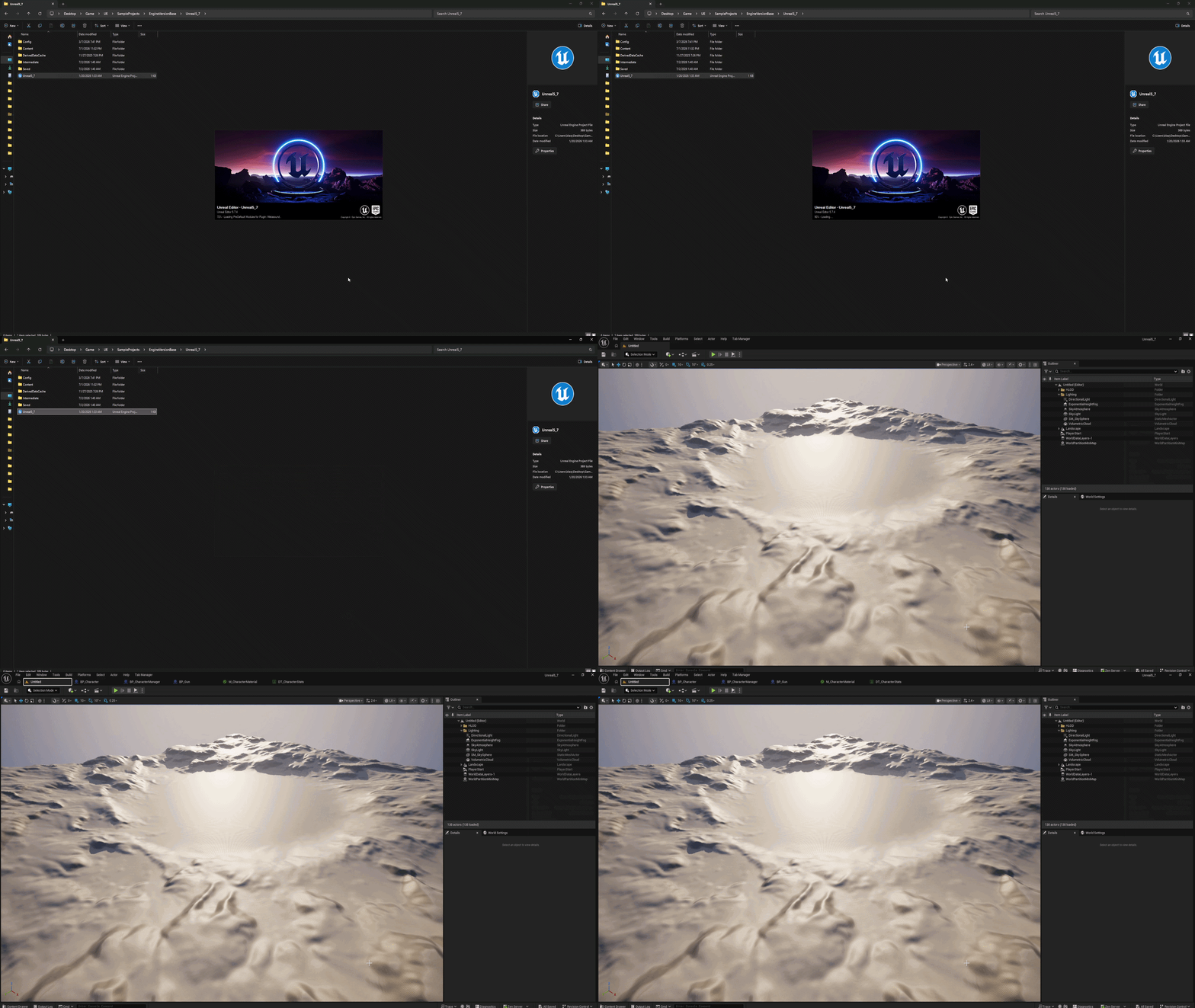
Choose what comes back
Pick a mode under Restore Tab Behavior in Editor Preferences:
Only Saved Tabs — reopens your saved list. The default.
Saved + Left Open Tabs — also brings back whatever was open at shutdown.
Never Restore — nothing reopens on start.
Closed a tab by accident? Press Ctrl + Shift + T and it's back — just like your web browser.
Close any asset editor tab
On purpose or by accident — Tab Assist keeps track either way.
Hit Ctrl + Shift + T
The most recently closed tab reopens instantly, no Content Browser needed.
Prefer a different shortcut? It's rebindable in Editor Preferences.
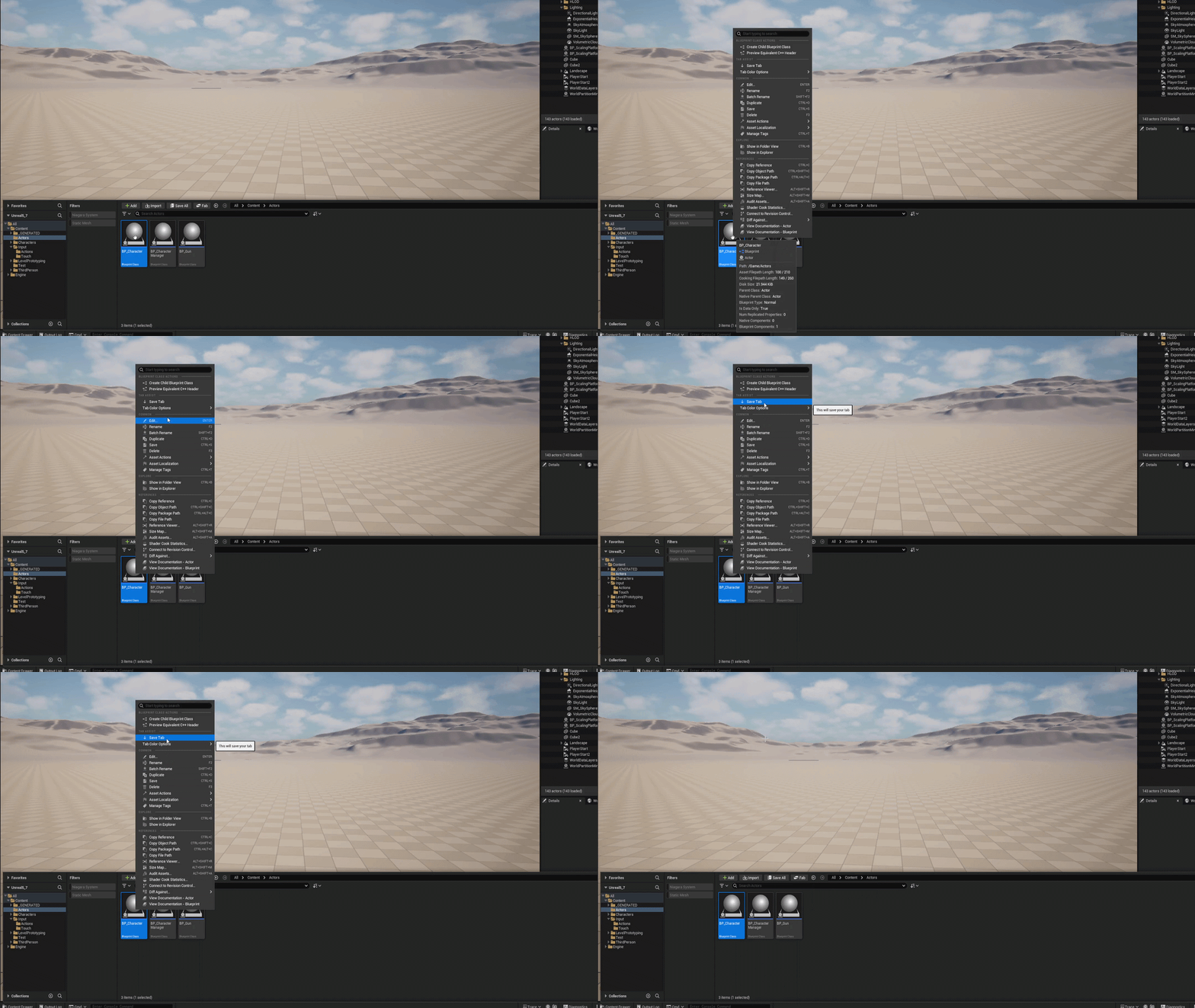
Two ways to save: per tab or everything at once. Saved tabs survive editor restarts.
Right-click the tab → Add to Saved Tabs
The same menu lets you remove it later.
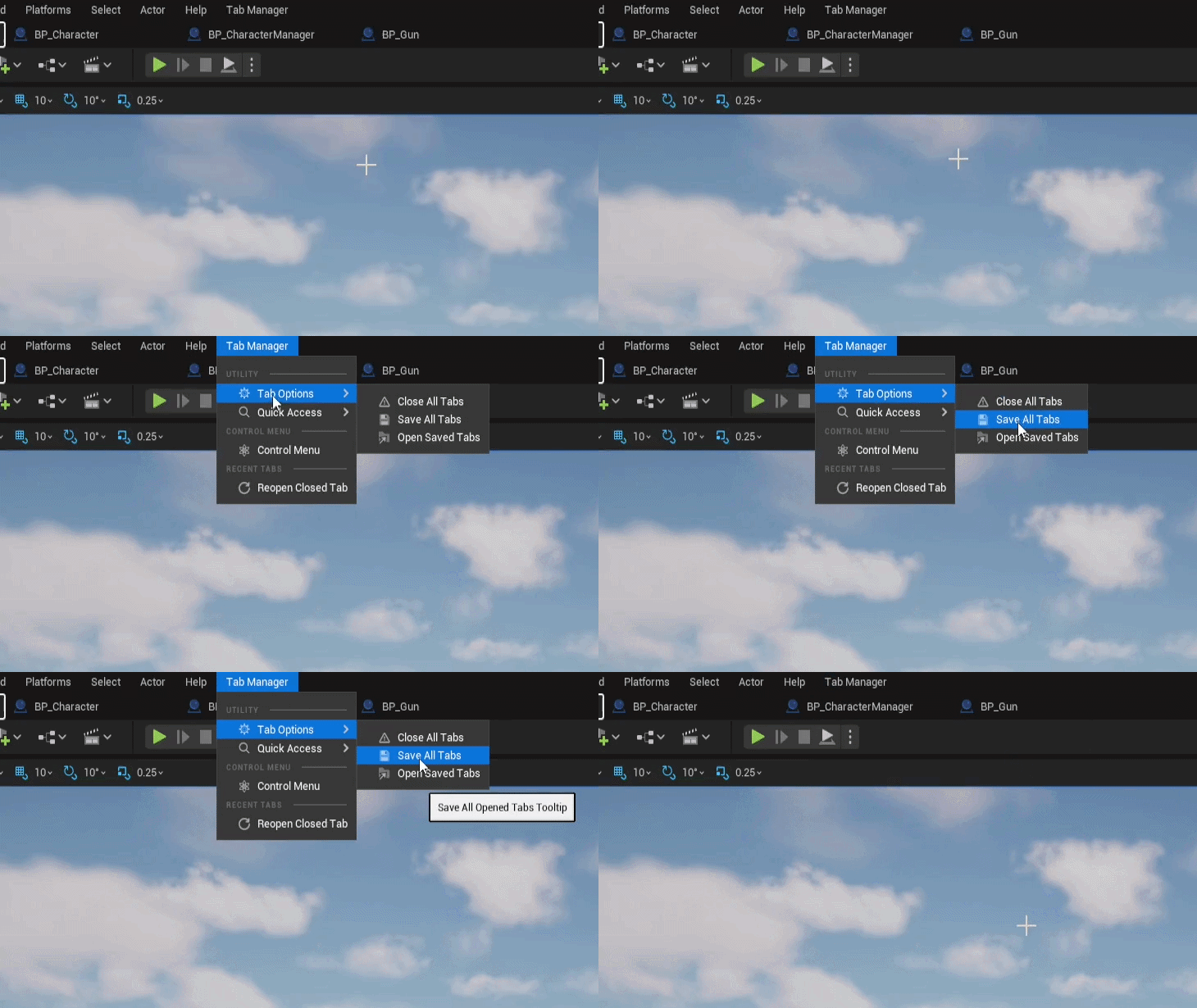
Or save every open tab at once
Use Save All Opened Tabs from the Tab Assist menu.
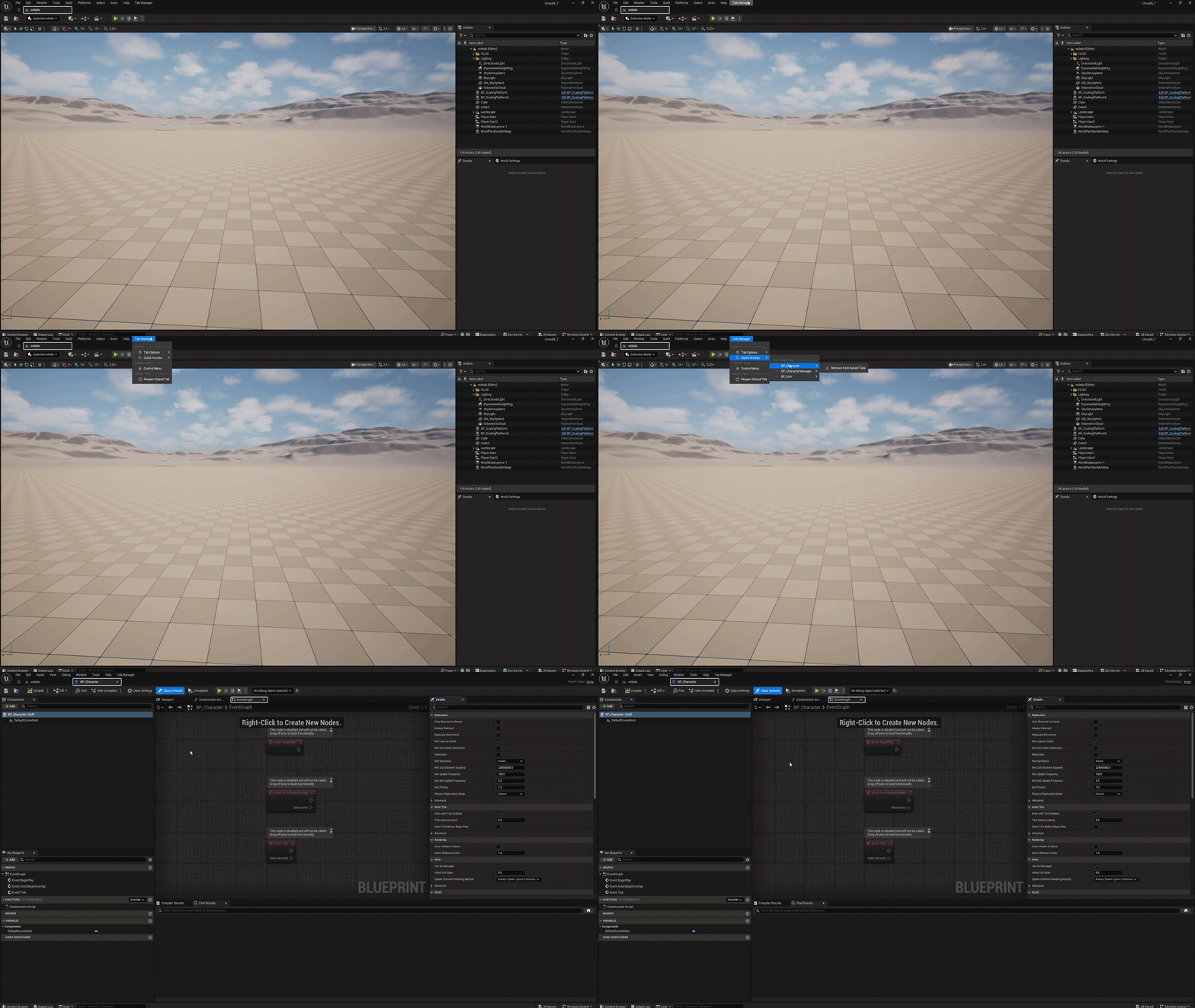
Reopen saved tabs any time
Pick one from the Tab Assist menu — or open all stored tabs in one action.
Everything It Does
Feature overviewRestore on editor start
Saved tabs reopen automatically when the editor launches — your workspace is ready before you are.
Save tabs
Right-click any tab to save it, or store your whole session at once with Save All Opened Tabs.
Reopen closed tabs
Closed something by accident? Ctrl + Shift + T brings it back — just like a browser. Rebindable in the settings.
Tab colors
Assign a color to any tab. Colors are saved per asset and reapplied every time the tab opens, so UI, gameplay and art assets stay visually separated.
Selected-tab border
An optional border style highlights the tab you're currently in, using its assigned color — easy to spot in a crowded tab strip.
Control Menu
One dockable panel for every saved tab — drag to reorder, edit colors, open, close or remove.
Content Browser integration
Right-click assets in the Content Browser to access Tab Assist actions without opening them first.
Tabs locked to the main window
Optionally force new asset editors to open as tabs in the main window instead of separate floating windows (UE 5.2+).
Settings
Editor PreferencesTab Assist's options live in the editor settings and are stored per project, per user.
| Setting | What it does |
|---|---|
| Force Lock Tab In Main Window | Keeps new asset editors docked as tabs in the main window. Turn off if you use a custom asset editor open location. UE 5.2 and later only. |
| Restore Tab Behavior | Choose what comes back on editor start: nothing, only saved tabs, or saved tabs plus whatever was left open. |
| Selected Tab Style Type | Bordered outlines the active tab with its assigned color for a more defined look; None disables it. |
| Reopen Closed Tabs Shortcut | Rebind the reopen shortcut. Default is Ctrl + Shift + T. Not all key combinations are accepted — reset to T for the default. |
Install & Enable
Getting startedAdd Tab Assist to your project
Install from Fab / the marketplace, or drop the plugin folder into your project's Plugins/ directory. Get Tab Assist on Fab.
Enable the plugin
In the editor, open Edit → Plugins, search for Tab Assist, tick the checkbox and restart the editor.
Start saving tabs
The Tab Assist menu appears in the editor's menu bar. Open your usual assets, right-click a tab, save it — done. Jump back to the walkthrough ↑